Embeddable Widget
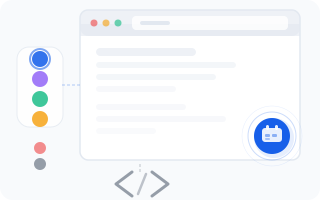
The booking widget is a floating button that you can add to your own website. When a visitor clicks it, a booking interface opens right there on your page — no redirects, no new tabs, no confusion. Your clients can browse services, pick a time, and book an appointment without ever leaving your site.
Selecting a Company
If you manage more than one company, use the dropdown at the top to choose which company the widget should be connected to. The preview and embed code will update accordingly.
Customizing Appearance
The widget is designed to blend in with your website, and you get a couple of options to make sure it fits just right.
Accent Color
Choose from 8 preset colors or pick a custom one using the color wheel. The selected hex code (e.g., #0050e7) is displayed so you can match it precisely with your brand colors.
The accent color applies to the floating button and key elements inside the booking interface.
Widget Position
Decide which corner the floating button should appear in:
- Right — bottom-right corner of the screen (this is the default and what most websites use)
- Left — bottom-left corner of the screen
Pick whichever side doesn't collide with other elements on your site, like chat buttons or cookie banners.
Preview
A browser mockup on the page shows how the widget button will look on your website with your selected color and position. This lets you experiment with different combinations before touching any code.
Getting the Embed Code
Once you're happy with the settings, the system generates an HTML <script> tag with everything baked in. The embed code includes:
- Your company ID
- Selected accent color
- Button position (left or right)
- Interface language
Here's what the embed code looks like:
<script
  src="https://cdn.wantvisit.com/widget.js"
  data-company-id="your-company-id"
  data-color="#0050e7"
  data-position="right"
  data-lang="en">
</script>
Click the Copy button to grab the code — no need to select it manually.
Installing on Your Website
Paste the embed code into your website's HTML, right before the closing </body> tag. That's it. The widget will appear automatically when visitors load the page.
If you're using a website builder (like Wix, Squarespace, or WordPress), look for an option to add custom HTML or a code snippet. Most builders have this in their settings or via a dedicated block/widget.
Verifying
After adding the code, open your website in a browser and look for the floating button in the corner you selected. Click it to test the full booking flow — try selecting a service, picking a time, and going through the steps. If something looks off, head back to the admin panel and adjust your settings.
TIP
Pick an accent color that matches your website's design. The widget should feel like a natural part of your site, not a surprise visitor from another dimension.