Services
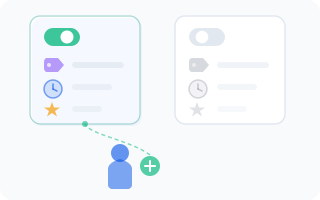
Services are the heart of your WantVisit setup — they're what your clients actually book. A haircut, a massage, a personal training session, a tarot reading (we don't judge) — if someone can book it, it's a service. Each service belongs to a group and is offered at a specific location.
Overview
A service in WantVisit includes everything a client needs to know before booking:
- What it's called and what it includes
- How long it takes
- How much it costs
- Who can perform it
Getting your services set up properly is one of the most important steps in configuring your business on WantVisit. Take your time here — it pays off.
Selecting a Group
Services live inside service groups. To find or manage services, navigate through the cascading dropdown at the top:
- Select a company
- Select a branch (location)
- Select a service group
The page will display all services within the selected group.
Creating a Service
To add a new service:
- Click "Create a service"
- Fill in the following details:
Name
The service name as clients will see it. Be clear and specific:
- "Men's Haircut" (good)
- "Haircut" (okay, but which kind?)
- "The Works" (fun, but what does it include?)
Description
Describe what the service includes. This helps clients understand what they're booking. For example: "Classic men's haircut including wash, cut, and styling. Hot towel finish included."
State
Control whether clients can book this service:
- Enabled — the service appears on the booking page and can be booked
- Disabled — the service is hidden from clients
Useful for seasonal services or offerings you're not ready to launch yet.
Duration
How long the service takes, from start to finish. Be realistic — if a haircut takes 45 minutes including the wash, set it to 45 minutes, not 30. Underestimating duration leads to overlapping appointments, rushed services, and unhappy clients.
Price
The cost of the service in the location's currency. This is what clients will see on the booking page (unless you choose to hide it — see below).
Show Duration
Choose whether the duration is visible on the booking page:
- Show — clients can see how long the service takes
- Don't show — duration is hidden from the booking page
Most businesses keep this visible, as clients like to know how much time to set aside.
Show Price
Choose whether the price is visible on the booking page:
- Show — clients can see the price upfront
- Don't show — price is hidden from the booking page
TIP
Hiding the price (Show price -> "Don't show") is useful for services where pricing varies — like "price upon consultation."
Popularity
Highlight popular services to help them stand out:
- Popular — the service gets a special highlight on the booking page, making it more visible to clients
- Not popular — standard display, no special treatment
Mark your best-sellers or signature services as popular to draw attention to them.
Promotion
Control whether this service is included in promotional messages:
- Promote — the service will be included in promotional messages sent to clients who haven't visited in a while. When enabled, a promotion interval field appears where you set the number of days (1–365) after a client's last visit before they receive a promotional message.
- Don't promote — the service is excluded from promotions
For example, setting the interval to 30 means clients who haven't booked this service in 30 days will get a promotional message. Set it to a value that makes sense for the service — a monthly haircut might use 30 days, while a seasonal spa treatment might go with 90.
Image
Upload an image to represent the service. Requirements:
- Minimum size: 256x256 pixels
- Maximum size: 1280x1280 pixels
A good service image helps clients visualize what they're booking. Show the result — a beautiful hairstyle, a relaxing spa setup, a fitness session in action.
Assigning Employees
After creating a service, you need to assign employees who can provide it. A service without employees is like a stage without performers — nothing's going to happen.
To assign employees:
- Find the service card on the page
- Click the "+" button on the card
- Select the employees who can perform this service
Only assigned employees will appear as available options when clients book this service. This means a client booking "Men's Haircut" will only see stylists you've designated for that service, not your massage therapist.
INFO
A service without assigned employees can't be booked. After creating a service, don't forget to assign at least one employee to it.
Service Cards
Each service is displayed as a card showing:
- Image — the service image
- Name — service name
- Description — what the service includes
- Duration — how long it takes
- Price — how much it costs
- Assigned employees — who can perform this service
- Action buttons — edit, assign employees, delete
Editing a Service
To update a service:
- Click the service card
- Modify any of the fields described above
- Save your changes
Changes take effect immediately. If you change the price, new bookings will reflect the updated price. Existing appointments keep the price that was set when they were booked.
Deleting a Service
To remove a service:
- Click the delete button on the service card
- Confirm in the dialog
WARNING
Deleting a service will archive it — it will disappear from the booking page and settings, and assigned employees will be unlinked. Future appointments will be automatically cancelled. Existing and past appointments will remain in the calendar and history. You can create a new service with the same name immediately after deletion.