Navigation & Layout
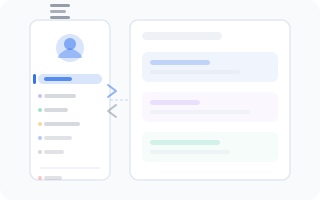
The WantVisit admin panel uses a sidebar-based layout. The sidebar on the left holds all your navigation, while the main content area fills the rest of the screen. Once you know where things live, getting around is second nature.
The Sidebar
On desktop, the sidebar is always visible on the left side of the screen. It can be collapsed to give more room to the main content area. Here's what you'll find in it, from top to bottom:
Your Profile
At the very top sits your avatar and name. A quick visual reminder of who's logged in — useful if you manage multiple accounts or just want to make sure you're in the right one.
Main Sections
These are the pages you'll use most often:
- Dashboard — your at-a-glance overview
- Calendar — the visual schedule for your team
- Appointments (History) — a list of all past and upcoming bookings
- Work Schedule — manage working hours and days off
- Clients — your client database
Settings Submenu
Click to expand and access configuration pages:
- Profile — your personal account settings and preferences
- Company — company details, logo, and general info
- Locations — manage your physical branches or locations
- Users — admin users who can access the panel
- Employees — staff members who provide services
- Schedule — working hours, breaks, and availability rules
- Groups — organize services into categories
- Services — the services you offer, with prices and durations
Integrations Submenu
Also expandable, this section covers:
- Websites — your booking page and link sharing
- Widget — the embeddable widget for your own website
Sign Out
At the bottom of the sidebar, the sign-out button lets you log out of the admin panel. It does exactly what it says — no tricks.
Theme Switcher
Also at the bottom, a toggle lets you switch between light and dark mode. More on that in Themes & Languages.
Mobile & Tablet
On smaller screens, the sidebar is hidden by default to save precious screen space. To open it:
- Tap the hamburger menu button (three horizontal lines) in the top-left corner
- The sidebar slides in from the left
- Tap anywhere on the content area (or the overlay) to close it
Everything works the same as on desktop — it's just tucked away until you need it.
Owl Assistant
In the bottom-right corner of the screen you'll find a floating button with an owl — this is the Owl Assistant. It shows context-aware tips for your current page, a link to the documentation, and occasionally tells jokes. Learn more on its dedicated page.
Navigating Between Pages
Click any menu item to navigate to that page. The current page is highlighted in the sidebar so you always know where you are.
Settings and Integrations have expandable submenus — click the section name to reveal the items inside. The submenu stays open as long as you're on one of its pages, so you won't lose your place.