Clients
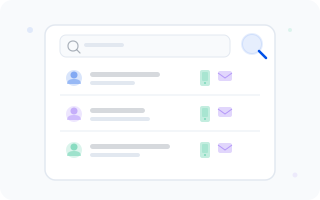
The Clients page is your digital contact book — everyone who's ever booked an appointment (or been booked for one) lives here. It's organized, searchable, and saves you from rummaging through sticky notes or old text messages.
Overview
Clients are organized by company. Each company maintains its own client list, so your businesses stay neatly separated. From here you can browse, search, create new clients, and quickly reach out to existing ones.
Switching Companies
If you manage multiple companies, use the segmented control at the top of the page to switch between them. Each company's client list is independent, so switching companies will show you a completely different set of clients.
Quick Search
The search bar sits right below the company selector. Just start typing — the list filters automatically. It searches across:
- First and last name
- Phone number
- Email address
There's a short delay (300 ms) before the search fires, so you won't hammer the server with every keystroke.
TIP
Can't remember a client's name? Try the last few digits of their phone number — that's often enough to find who you're looking for.
Advanced Filtering
For more precise searches, click the filter button and use individual fields:
- Phone number
- First name
- Last name
Click "Search" to apply your filters, or "Reset" to clear them and start fresh. You can combine multiple filters to narrow things down further.
Sorting
Choose how clients are ordered using the sort dropdown:
- Name (A-Z) — alphabetical order
- Name (Z-A) — reverse alphabetical order
- Recently active — clients who recently logged in
- Date created — newest clients first
Client List
Clients are displayed as cards. Each card shows you everything you need at a glance:
- Avatar — pulled from Gravatar if available, with a small badge indicating the client's confirmation status
- Name — first and last name
- Phone number & email — contact details at a glance
- Language tag — the client's preferred language
- Quick-action buttons — create an appointment, send an email, or make a phone call directly from the card
Pagination
Use the pagination controls at the bottom to navigate between pages. You can choose how many clients to show per page: 10, 25, 50, or 100. The total count of matching clients is always displayed.
INFO
The client list respects your current search query and filters. If the count looks lower than expected, check whether you have an active filter or search term applied.
Client Profile
Click on a client card to open their detailed profile in a side panel. This is where all the per-client analytics live:
Summary
Four cards with key metrics:
| Metric | Description |
|---|---|
| Total visits | Total number of appointments for this client |
| Revenue | Sum of all completed appointments |
| Average check | Average appointment price |
| Average rating | Mean rating from the client's reviews |
Appointments Tab
A table with the client's full appointment history. Each entry shows the date, service, employee, price, and status.
Analytics Tab
Charts and statistics:
- Visit timeline — a monthly visits chart
- Popular services — which services this client books most often
- Favorite employees — who this client prefers to book with
Reviews Tab
All published reviews from this client, complete with star rating, comment, and service name.
TIP
The client profile is a great pre-call cheat sheet. Check what services they love and suggest something relevant — your clients will think you're a mind reader.
Creating a Client
Click the "+" button to open a side panel with the client form. Fill in the following:
| Field | Required | Details |
|---|---|---|
| Phone number | Yes | Format: +1234567890 |
| No | Standard email format | |
| First name | Yes | 2-32 characters |
| Last name | No | Optional but helpful for telling your Annas apart |
| Language | Yes | Choose from 10 supported languages |
Click "Create" to add the client to your company's list.
TIP
Clients created inline from the Calendar's appointment form also appear here. No need to create them twice — we've got you covered.